What is Web Video Cast | Browser to TV Apps?
Web Video Cast | Browser to TV is an application designed to bridge the gap between web content and large-screen playback by letting users stream or cast video and audio found in web pages directly to networked media devices. At its core, the product functions as a specialized browser and content extractor: it parses a visited page to identify playable media streams and presents those streams as selectable targets for casting. Once a stream URL is obtained, the app hands that URL off to a target device so the device can play the media natively, which keeps mobile device resource usage low and maintains playback continuity even if the mobile device’s screen is turned off. The product supports a variety of streaming formats and container types, and it focuses on delivering a smooth watch-from-phone-to-TV experience without forcing the phone to do full transcoding. Because the architecture relies on devices that accept remote playback commands or direct media URLs, users benefit from hardware-accelerated decoding on the TV or streaming dongle, reducing stutter and battery drain on the controlling device. The interface typically organizes discovered media, lets users preview content before casting, and offers transport controls such as play, pause, seek, and stop. For content that supports it, playback metadata like titles and thumbnails are surfaced to make selection easier. This solution is aimed at people who want to consume web-hosted videos, live streams, and other media on a television or external display while keeping browsing and control on the handheld device. It transforms a mobile browsing session into a second-screen controller and improves the viewing experience by leveraging the best playback capabilities of the destination device.
From a technical standpoint, Web Video Cast operates as an intermediary that discovers streaming endpoints and communicates playback commands to supported devices. Discovery is often handled through local network protocols and device-specific APIs; common targets include cast-enabled dongles, smart TVs that accept direct media URLs, and media renderers that implement UPnP/DLNA. When a playable resource is identified on a page, the app extracts the media URL and provides it to the selected device using the protocol that device supports, which allows playback to happen on the device itself. Subtitles and alternate audio tracks are frequently supported by supplying the device with associated file URLs or timed text streams. The app also manages playback sessions by maintaining state: a remote control interface on the controller device communicates transport commands and receives status updates such as current position and duration. For live streams and adaptive bitrate formats, the system can pass manifest URLs (for HLS, MPEG-DASH, etc.) directly to the rendering device, enabling adaptive playback behavior that adjusts quality based on network conditions. Parsing logic is built to handle common HTML5 video tags, embedded players, and direct media links; heuristics and content sniffing help the tool surface the most relevant streams when multiple candidates exist. Network considerations such as LAN throughput, multicast discovery behavior, and router isolation settings influence how smoothly devices are found and how reliably media is delivered. Overall, the product minimizes media reprocessing on the controller and leans on destination hardware to deliver optimal playback.
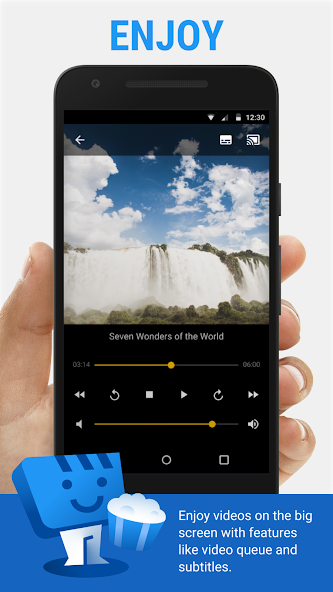
User workflows with Web Video Cast vary by need but share common patterns oriented around quick discovery and smooth transition to big-screen viewing. A typical scenario begins with browsing a website or following a link to a video; once the embedded stream is detected, the user chooses a target device and initiates casting. The controller then becomes a remote: it offers playback controls, a seek bar, and often a queue to line up multiple items for consecutive viewing. Playlists and enqueuing make it easy to switch between clips or episodes without returning to the browser each time. For local media, the app can serve or point a rendering device to files stored on the mobile device or on local network shares, providing flexibility for people who maintain personal media libraries. Subtitle management is frequently part of the workflow: users can load external subtitle files or toggle available subtitles, adjusting timing and appearance where supported. For content with multiple quality levels, the app can hand over adaptive manifests so the destination device can automatically choose the best quality for the current connection. Remote control features often include volume adjustments and the ability to jump to specific timestamps, which is convenient for collaborative viewing or presentations. Many users leverage this setup for streaming web-based live events, educational videos, short clips, or curated media sessions where the mobile device acts as a curator and the connected screen handles intensive playback tasks. The result is a portable, familiar interface for navigating web content paired with the viewing advantages of a larger display and better speakers.
Performance and network behavior are central to the perceived quality of a casting experience, and Web Video Cast optimizes for efficient handoff and minimal controller involvement. By passing direct media URLs to the playback device, the application reduces the bandwidth load on the mobile controller and lowers the chance of playback interruptions caused by multitasking or power-saving modes on the handheld unit. The playback device’s hardware decoder and network stack typically handle steady streaming more reliably than a tethered phone, especially for high-bitrate or high-resolution content. However, network topology plays a big role: devices need mutual visibility on the same local area network, and routers that segregate wireless clients or enable client isolation can prevent discovery or media delivery. Throughput, latency, and concurrent device traffic also influence adaptive streaming choices made by the target device; therefore, wired connections or high-quality Wi‑Fi improve the robustness of playback for 4K and high-bitrate streams. The app often supports reconnect workflows so that if a controller temporarily loses contact, the destination device can continue playing, and the controller can resynchronize its state when connectivity returns. Efficient parsing and heuristic selection reduce false positives when extracting media links from complex pages, and caching of frequently used metadata speeds up UI responsiveness. For devices with limited protocol support, fallback options like DLNA can provide basic playback compatibility, while more capable endpoints accept additional controls and metadata. Overall, the engineering focus is on ensuring that casting shifts the heavy lifting to the screen-side hardware and network path that best accommodates uninterrupted, high-quality viewing.
Privacy, customization, and flexibility are key selling points for many users who adopt a browser-to-TV casting tool. Privacy considerations center on how media URLs and playback metadata are handled: a well-designed product limits data persistence to what’s necessary for user convenience, such as short-term session state or a local playback history, while giving users control over clearing that data. Customization features help adapt the experience to varied environments—options like subtitle appearance, default playback speed, and whether a casted session should continue when the controller sleeps let individuals tailor behavior to personal preferences. Advanced users appreciate the ability to manage queues, fine-tune subtitle synchronization, and select specific audio tracks when multiple options are available. Integration flexibility is another advantage: the tool can complement browsers, file managers, and media servers, enabling use cases from casual streaming of web clips to curated movie nights with local media collections. Because much of the heavy decoding and streaming is handled by the destination device, power consumption on the controller is minimized, which is convenient for long viewing sessions. The product is also useful in small-scale presentation settings where presenters prefer to use a familiar handheld interface to control video playback on a larger display without needing to connect cables. Together, privacy-minded defaults, adjustable playback options, and a focus on offloading playback tasks to capable hardware make this type of product attractive to users who want a portable control surface for an optimized living-room or meeting-room viewing experience.
How to Get Started with Web Video Cast | Browser to TV?
- 1. Install the Web Video Cast app from your device's app store (available for Android and iOS).
- 2. Connect your smartphone or tablet to the same Wi-Fi network as your TV or streaming device.
- 3. Open the Web Video Cast app.
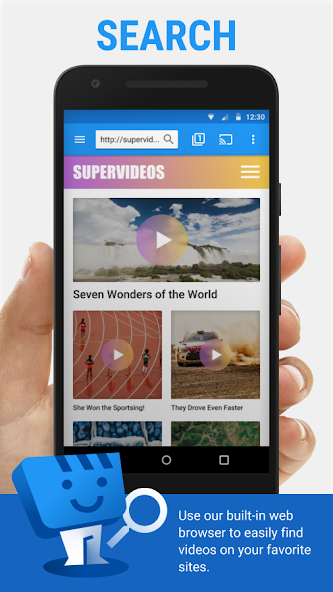
- 4. Use the built-in browser to navigate to the website with the video you want to cast.
- 5. Play the video in the app. A pop-up will appear to choose the streaming device.
- 6. Select your TV or streaming device from the list.
- 7. The video should start casting on your TV. Use playback controls in the app to control playback.
10 Pro Tips for Web Video Cast | Browser to TV Users
- 1. Choose the Right Streaming Device: Select a reliable streaming device like Roku, Chromecast, or Amazon Fire Stick that supports your desired video services.
- 2. Optimize Your Wi-Fi Connection: Ensure a strong and stable internet connection. Use a wired connection if possible for better performance.
- 3. Use Compatible Formats: Check that your video format and codec are compatible with your browser and TV video player.
- 4. Adjust Video Quality Settings: Lower the video quality during playback if you experience buffering issues for a smoother experience.
- 5. Explore Screen Mirroring Options: Use built-in screen mirroring features on devices like Smart TVs to cast videos directly from your browser.
- 6. Use Extensions or Apps: Consider browser extensions or dedicated apps that enhance video casting functionality and user experience.
- 7. Test Before Your Event: Run a test stream before any important broadcast to identify and troubleshoot potential issues.
- 8. Monitor Device Compatibility: Ensure all devices involved are updated with the latest firmware for optimal compatibility and performance.
- 9. Clear Browser Cache: Clear your browser cache regularly to improve performance and reduce playback issues.
- 10. Engage Your Audience: Use interactive features available in your streaming service to engage viewers, such as polls or live chats.
The Best Hidden Features in Web Video Cast | Browser to TV
- Supports multiple video formats, including HTML5, MP4, and streaming protocols.
- Cast videos from various sources, including browser tabs and local files.
- Supports subtitles and closed captions for a better viewing experience.
- Allows users to control playback speed for personalized viewing.
- Includes a built-in media player with advanced controls and options.
- Enables bookmark management for quick access to favorite content.
- Offers a screen mirroring feature for sharing device screens.
Web Video Cast | Browser to TV Faqs
How do I cast videos from my phone to my TV using the app?
To cast videos, open the app, select the content you want to stream, and tap the cast icon. Choose your TV from the list of available devices, and the video will start playing on the TV.
Can I control video playback from my phone while casting?
Yes, you can control playback directly from your phone. Use the app to pause, play, rewind, or fast-forward the video while it’s casting on your TV.
What types of media can I cast using this app?
You can cast a variety of media, including videos, music, and images from your phone or web browser to your TV. The app supports various file formats for seamless streaming.
How do I enable local media casting in the app?
To enable local media casting, follow these steps:
1. Open the app and go to 'Settings'.
2. Navigate to 'Local Media'.
3. Select 'Enable Local Media' toggle.
4. Use the app to find your media files.
Can I browse the web and cast videos at the same time?
Yes, you can browse the web while casting. Simply open the integrated browser within the app, search for videos, and select the cast icon to stream content to your TV.


 HappyMod